
Create a Mapping for Specific Employees
Employee Mappings
While most mappings can be applied to your file or all employees, the type field can also be mapped to different values for each employee.
You can map a value in your file to different earnings rates or pay items per employee. You can also set an optional default value for all employees that do not have a specific value set.
Setup
To create an employee mapping, validate a file in Xero, then click the create mapping link in the error message. Follow the instructions for creating a mapping.
Note: Employee mappings are created during validation, not from the Mapping menu.
Select Apply mapping to this employee only before saving the mapping.
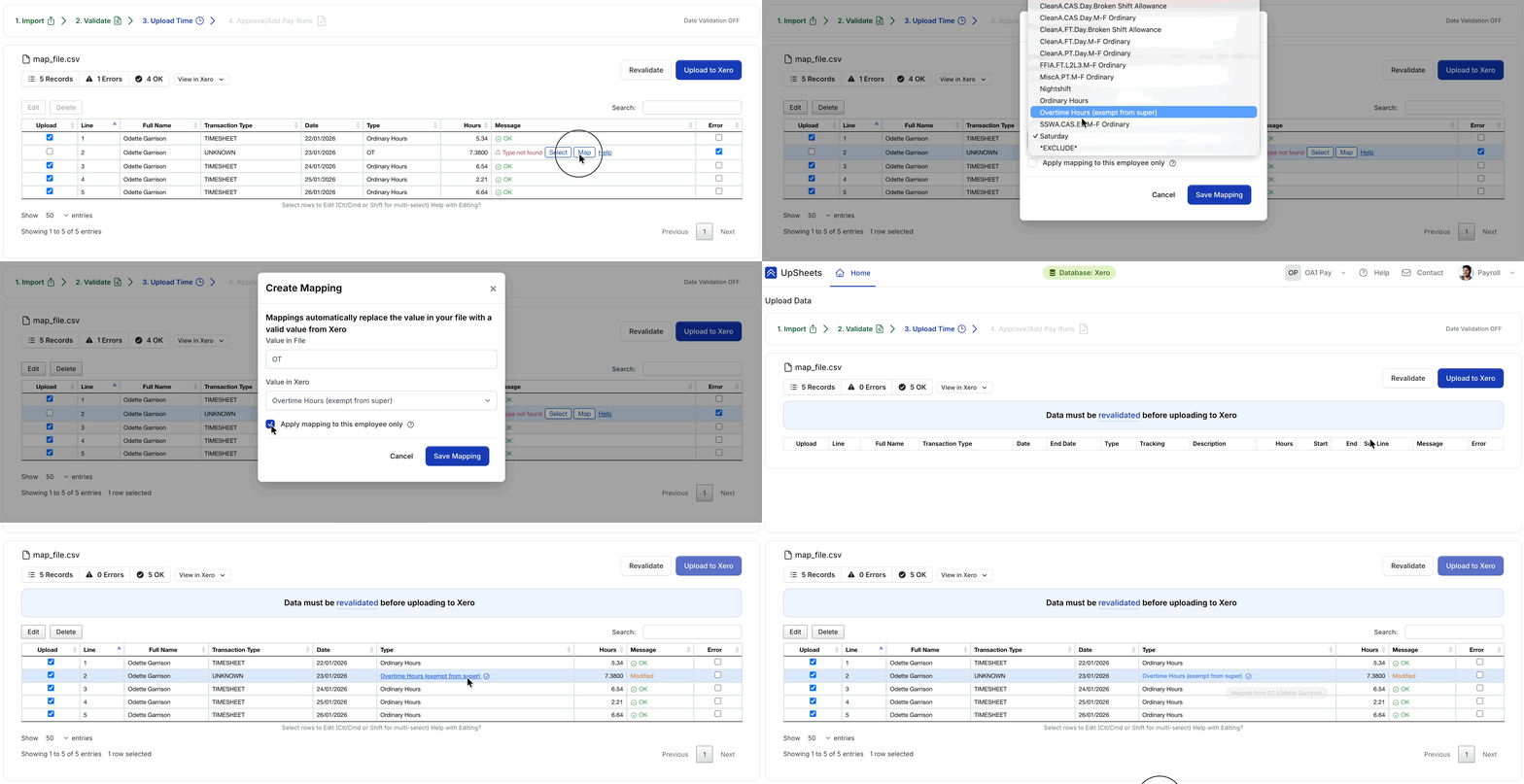
The mapping will now be displayed and only apply to this employee.
Applying an employee mapping when a default already exists
If a mapping exists for all employees and you want a different value for one employee, click the mapping link to open the Edit Mapping window.
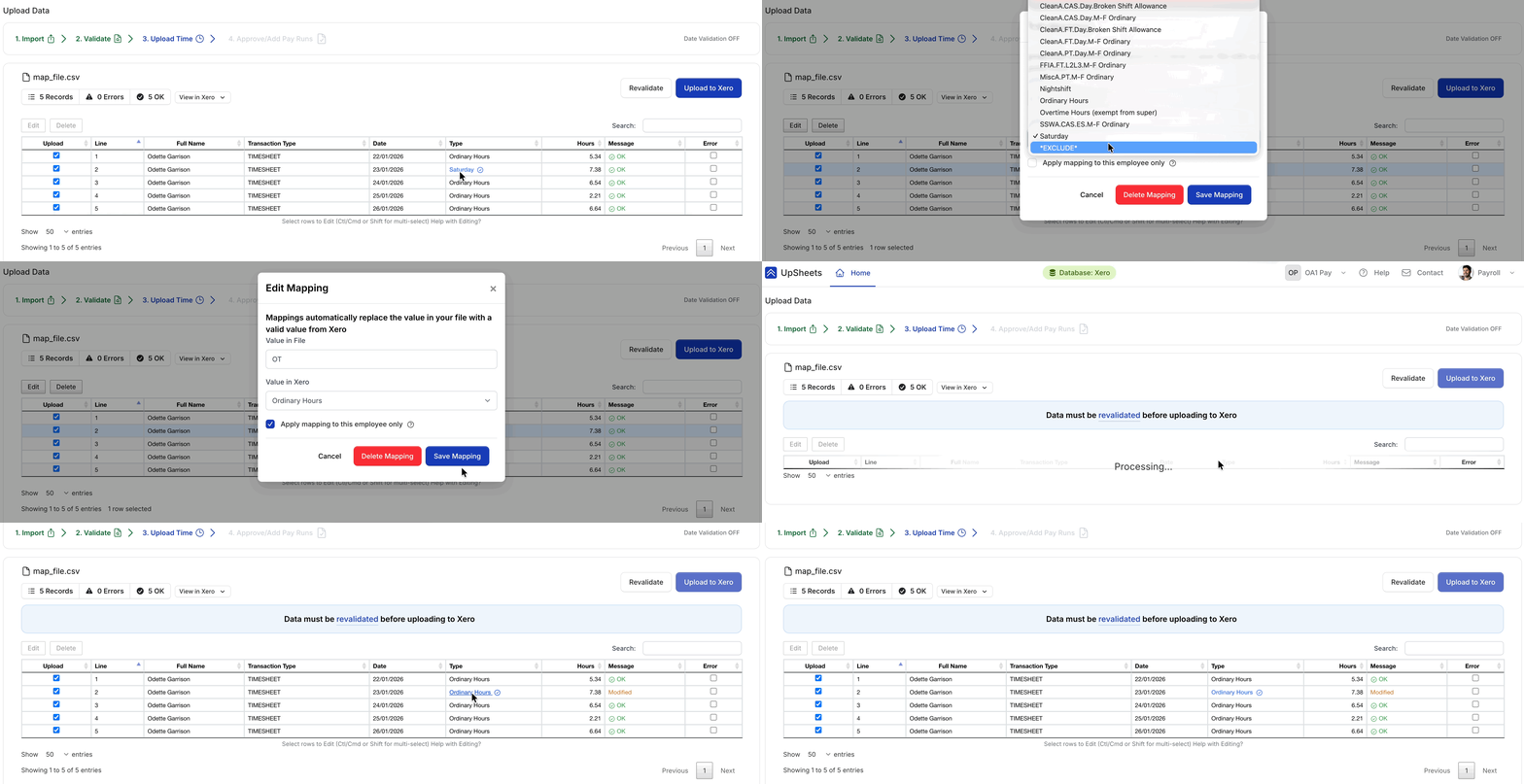
Select the value for the employee and Apply mapping to this employee only, then save the mapping.
Editing an employee mapping
To change the mapping, click the mapping link, update Value in Xero and save.
If no default value exists and Apply mapping to this employee only is turned off, the mapping is updated to apply to all employees, like a normal mapping.
Delete an employee mapping
To delete an employee mapping, click the mapping to open the Edit Mapping window and select Delete Mapping.
If a default mapping exists, this will automatically be applied to the employee as they no longer have a mapping defined.